Working with Cells (सेल के साथ कार्य करना)
Working with Cells का अर्थ है Spreadsheet में Cell का चयन (Select), Cell Address पहचानना, Data दर्ज (Enter) करना तथा आवश्यकता अनुसार उसे Edit (संशोधित) करना।
English:
Working with Cells means selecting cells, identifying cell addresses, entering data, and editing cell contents in a spreadsheet.
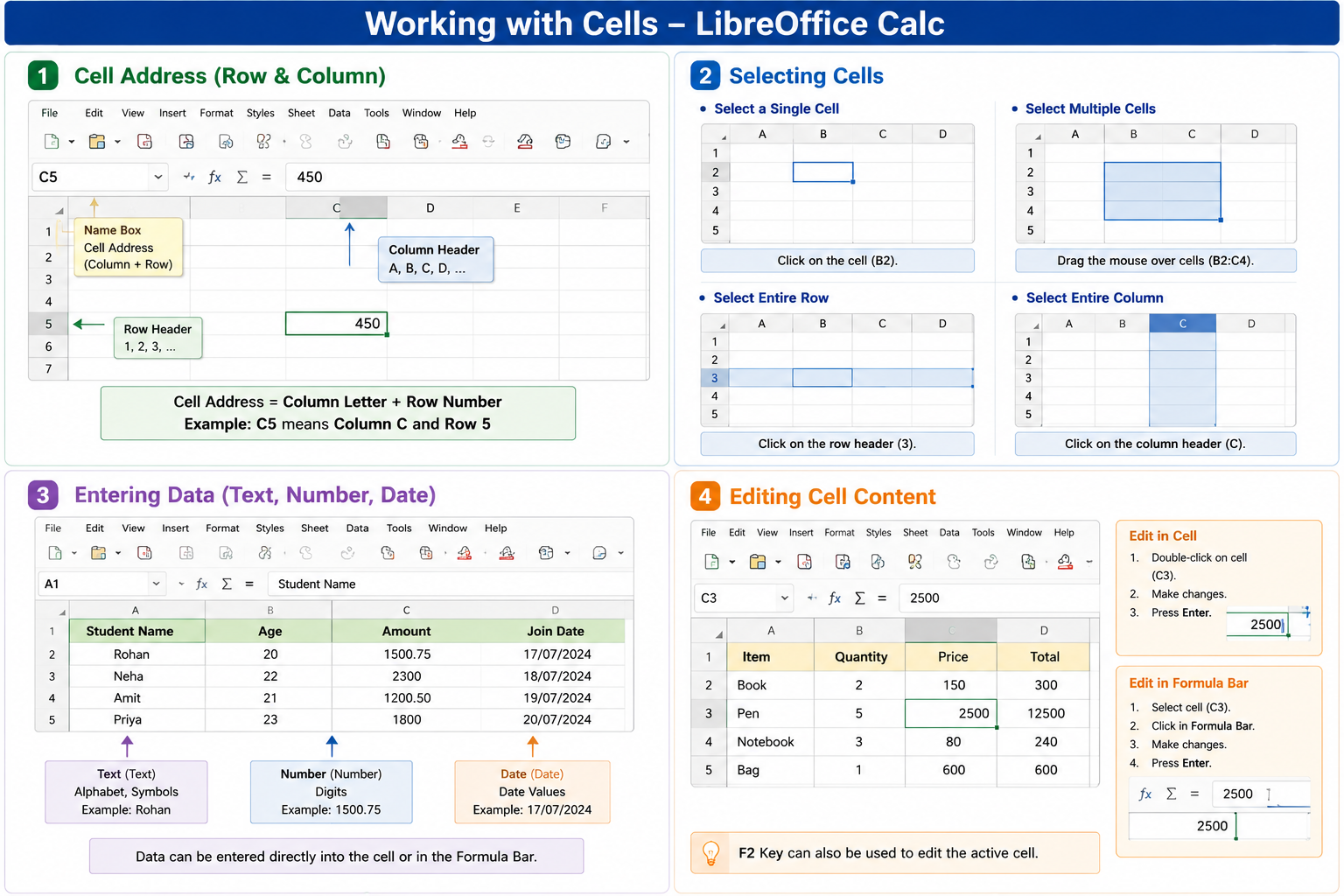
1. Cell Address (Row & Column) – सेल एड्रेस (रो और कॉलम) :-
Cell Address किसी Cell की पहचान (Identity) होता है। यह Column Letter और Row Number से मिलकर बनता है।
English:
A Cell Address is the unique location of a cell. It is made up of a Column Letter and a Row Number.
Examples (उदाहरण)
- A1 = Column A, Row 1
- B5 = Column B, Row 5
- C10 = Column C, Row 10
- AA15 = Column AA, Row 15
Steps (विधि) -
- LibreOffice Calc खोलें।
- किसी भी Cell पर क्लिक करें।
- ऊपर Name Box में उसका Cell Address दिखाई देगा।
- उसी Address का उपयोग Formula और Functions में किया जाता है।
Uses (उपयोग) -
- Cell की पहचान करने के लिए।
- Formula लिखने के लिए।
- Functions में Cell Reference देने के लिए।
- Data खोजने के लिए।
Shortcut Key -
Ctrl + G → Go To (किसी भी Cell Address पर जाने के लिए)
2. Selecting Cells (सेल का चयन करना)
Spreadsheet में किसी Cell, Row, Column या Cell Range को चुनने की प्रक्रिया Selecting Cells कहलाती है।
English:
Selecting Cells means choosing one or more cells, rows, columns, or ranges in a worksheet.
Types of Selection -
Single Cell (एक Cell) -
Hindi: किसी एक Cell पर क्लिक करके उसे Select करते हैं।
English: Click on a cell to select it.
Multiple Cells (एक से अधिक Cells) -
Hindi: Mouse Drag या Shift Key की सहायता से कई Cells Select करते हैं।
English: Drag the mouse or use Shift to select multiple cells.
Entire Row (पूरी Row) -
Hindi: Row Number पर क्लिक करके पूरी Row Select करते हैं।
English: Click the Row Number to select the entire row.
Entire Column (पूरा Column) -
Hindi: Column Letter पर क्लिक करके पूरा Column Select करते हैं।
English: Click the Column Letter to select the entire column.
Entire Worksheet (पूरी Worksheet) -
Hindi: Row और Column के बीच वाले Select All बटन पर क्लिक करके पूरी Worksheet Select करते हैं।
English: Click the Select All button to select the entire worksheet.
Uses (उपयोग) -
- Copy करने के लिए।
- Cut करने के लिए।
- Delete करने के लिए।
- Formatting करने के लिए।
- Formula लगाने के लिए।
Shortcut Keys -
Ctrl + A → Select All
Ctrl + Space → Select Column
Shift + Space → Select Row
Shift + Arrow Keys → Continuous Cells Select
3. Entering Data (Text, Number, Date) – डेटा दर्ज करना:-
Cell में किसी भी प्रकार की जानकारी लिखने की प्रक्रिया Data Entry कहलाती है।
English:
The process of entering information into a cell is called Data Entry.
Types of Data-
Text Data (टेक्स्ट डेटा)-
Hindi: इसमें अक्षर (Letters) या शब्द (Words) लिखे जाते हैं।
Examples: Amit, Delhi, Computer, NIELIT
English: Contains letters or words.
Examples: Amit, Delhi, Computer, NIELIT
Number Data (नंबर डेटा) -
Hindi: इसमें केवल अंक (Numbers) लिखे जाते हैं।
Examples: 100, 2500, 98.5, -25
English: Contains numeric values.
Examples: 100, 2500, 98.5, -25
Date Data (डेट डेटा) -
Hindi: इसमें दिन, महीना और वर्ष से संबंधित जानकारी लिखी जाती है।
Examples: 18/07/2026, 18-Jul-2026
English: Contains date values.
Examples: 18/07/2026, 18-Jul-2026
Steps (विधि) -
- Cell Select करें।
- Data Type करें।
- Enter दबाएँ।
- अगला Cell Active हो जाएगा।
Uses (उपयोग) -
- Student Record बनाने के लिए।
- Salary Sheet तैयार करने के लिए।
- Attendance बनाने के लिए।
- Billing और Report तैयार करने के लिए।
Shortcut Keys -
Enter → Next Row
Tab → Next Column
Shift + Enter → Previous Row
Shift + Tab → Previous Column
4. Editing Cell Content (सेल के डेटा को संपादित करना) :-
Cell में पहले से लिखे हुए Data को बदलना, जोड़ना या हटाना Editing कहलाता है।
English:
Editing Cell Content means modifying, adding, or deleting the existing data in a cell.
Methods (विधि) -
Method 1: Cell पर Double Click करके Data बदल सकते हैं।
English: Double-click the cell to edit its content.
Method 2: Formula Bar में जाकर Data बदल सकते हैं।
English: Edit the data using the Formula Bar.
Method 3: Cell Select करके F2 दबाकर Editing कर सकते हैं।
English: Press F2 to edit the selected cell.
Method 4: Delete या Backspace दबाकर Data हटाया जा सकता है।
English: Press Delete or Backspace to remove cell content.
Uses (उपयोग) -
- गलत Data सुधारने के लिए।
- नया Data जोड़ने के लिए।
- पुराने Data को Update करने के लिए।
- Formula बदलने के लिए।
Shortcut Keys -
F2 → Edit Cell
Delete → Delete Cell Content
Backspace → Clear Cell Content
Esc → Cancel Editing
Enter → Save Editing