Formatting and Manipulation (फॉर्मेटिंग एवं डेटा प्रबंधन):-
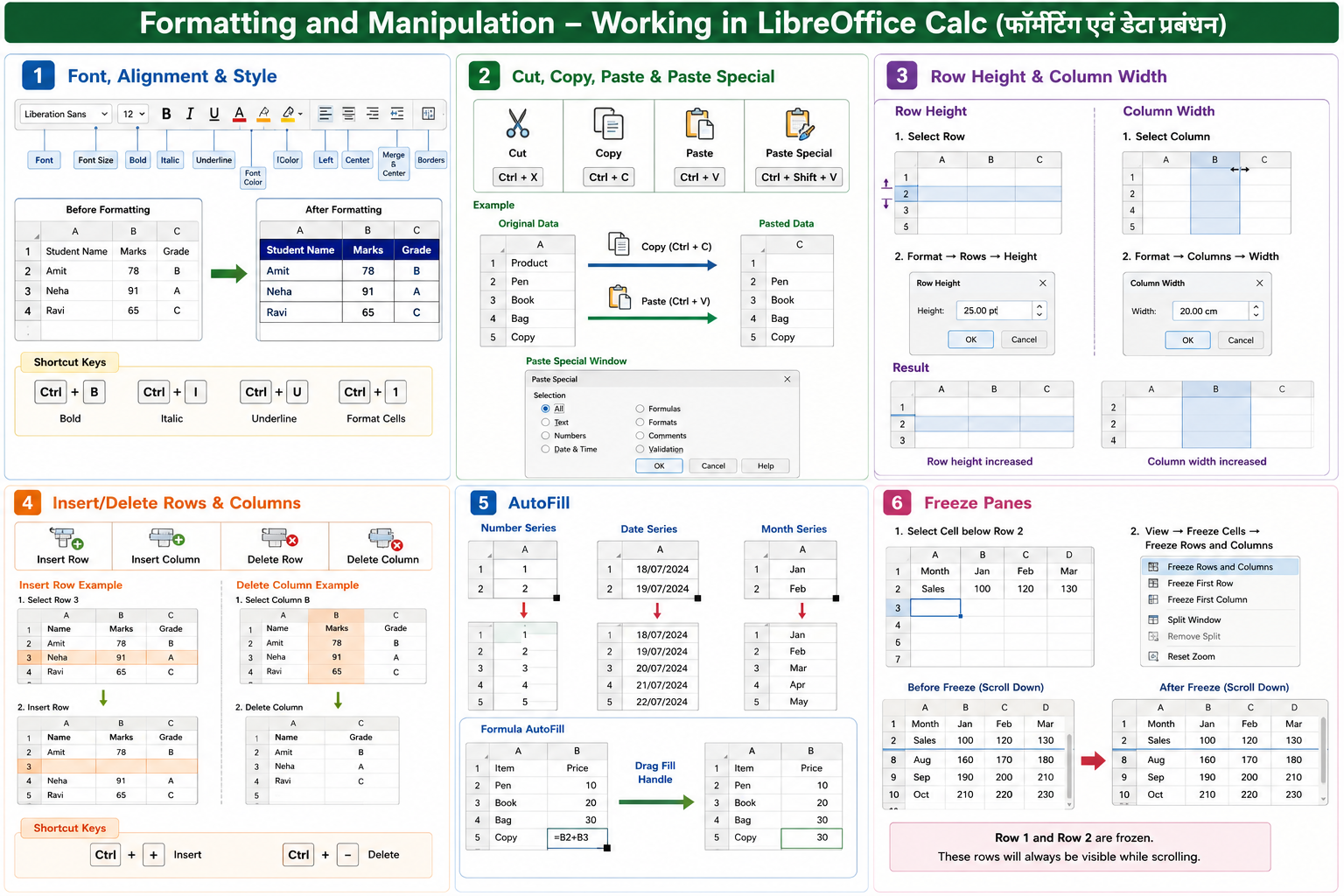
Formatting and Manipulation का अर्थ है Spreadsheet में Data का रूप (Appearance) बदलना तथा Data को व्यवस्थित (Manage) करना। इसके अंतर्गत Font बदलना, Alignment करना, Copy, Cut, Paste करना, Row और Column का Size बदलना, AutoFill तथा Freeze Panes आदि कार्य किए जाते हैं।
English:
Formatting and Manipulation means changing the appearance of data and managing it in a spreadsheet. It includes changing fonts, alignment, copying, cutting, pasting, adjusting row and column sizes, AutoFill, and Freeze Panes.
1. Font, Alignment & Style (फ़ॉन्ट, अलाइनमेंट एवं स्टाइल) :-
इस विकल्प का उपयोग Cell के Text का Font, Size, Color, Style तथा Alignment बदलने के लिए किया जाता है।
English:
This option is used to change the font, size, color, style, and alignment of cell contents.
Steps (विधि) -
- Cell या Range Select करें।
- Toolbar या Format Menu का उपयोग करें।
- Font, Size, Bold, Italic, Underline, Color, Alignment या Style चुनें।
- Formatting तुरंत लागू हो जाएगी।
Uses (उपयोग) -
- Heading को आकर्षक बनाने के लिए।
- Data को स्पष्ट दिखाने के लिए।
- Report को Professional बनाने के लिए।
- महत्वपूर्ण जानकारी Highlight करने के लिए।
Shortcut Keys -
Ctrl + B → Bold
Ctrl + I → Italic
Ctrl + U → Underline
Ctrl + 1 → Format Cells
2. Cut, Copy, Paste & Paste Special (कट, कॉपी, पेस्ट एवं पेस्ट स्पेशल):-
इन विकल्पों का उपयोग Data को एक स्थान से दूसरे स्थान पर ले जाने या उसकी प्रतिलिपि (Copy) बनाने के लिए किया जाता है।
English:
These options are used to move or copy data from one location to another.
Cut (कट) :-
Hindi:
चयनित Data को एक स्थान से हटाकर दूसरे स्थान पर ले जाने के लिए।
English:
Used to move selected data from one place to another.
Shortcut Key: Ctrl + X
Copy (कॉपी) :-
Hindi:
चयनित Data की एक प्रतिलिपि (Duplicate Copy) बनाने के लिए।
English:
Used to create a duplicate copy of selected data.
Shortcut Key: Ctrl + C
Paste (पेस्ट) -
Hindi:
Cut या Copy किए गए Data को नए स्थान पर चिपकाने के लिए।
English:
Used to paste copied or cut data into another location.
Shortcut Key: Ctrl + V
Paste Special (पेस्ट स्पेशल) -
Hindi:
केवल Value, Formula, Format या अन्य विशेष Data को Paste करने के लिए।
English:
Used to paste only values, formulas, formats, or other specific data.
Shortcut Key: Ctrl + Shift + V
Uses (उपयोग)
- Data को दूसरी जगह ले जाने के लिए।
- Duplicate Copy बनाने के लिए।
- केवल Values या Formatting Paste करने के लिए।
- समय बचाने के लिए।
3. Row Height & Column Width (रो की ऊँचाई एवं कॉलम की चौड़ाई)
Row की Height तथा Column की Width को आवश्यकता अनुसार बढ़ाना या घटाना।
English:
Used to increase or decrease the height of rows and the width of columns.
Steps (विधि)
- Row या Column Select करें।
- Format → Rows → Height या Format → Columns → Width चुनें।
- नया Size दर्ज करें।
- OK पर क्लिक करें।
Uses (उपयोग) -
- लंबे Text को सही दिखाने के लिए।
- Table को व्यवस्थित बनाने के लिए।
- बेहतर Printing के लिए।
- Data को आसानी से पढ़ने के लिए।
Shortcut Key -
No Default Shortcut
4. Insert/Delete Rows & Columns (रो एवं कॉलम जोड़ना/हटाना)
Worksheet में नई Rows और Columns जोड़ना या चयनित Rows तथा Columns हटाना।
English:
Used to insert new rows and columns or delete selected rows and columns.
Insert Row-
नई Row जोड़ने के लिए।
English:
Used to insert a new row.
Insert Column -
नया Column जोड़ने के लिए।
English:
Used to insert a new column.
Delete Row -
Hindi:
चयनित Row हटाने के लिए।
English:
Used to delete the selected row.
Delete Column
Hindi:
चयनित Column हटाने के लिए।
English:
Used to delete the selected column.
Uses (उपयोग)
- नया Data जोड़ने के लिए।
- अनावश्यक Data हटाने के लिए।
- Worksheet को व्यवस्थित करने के लिए।
Shortcut Keys
Ctrl + + → Insert Cells/Rows/Columns
Ctrl + - → Delete Cells/Rows/Columns
5. AutoFill (ऑटोफिल) Definition (परिभाषा)
Hindi:
AutoFill का उपयोग Series, Number, Date, Month, Day या Formula को स्वतः भरने के लिए किया जाता है।
English:
AutoFill is used to automatically fill numbers, dates, months, days, or formulas in adjacent cells.
Steps (विधि)
- पहले Cell में Data लिखें।
- Fill Handle (नीचे दाएँ कोने) पर Mouse रखें।
- Drag करें।
- Data स्वतः Fill हो जाएगा।
Examples
1, 2, 3, 4...
Jan, Feb, Mar...
Monday, Tuesday...
Uses (उपयोग)
- Number Series बनाने के लिए।
- Date Series बनाने के लिए।
- Formula Copy करने के लिए।
- समय बचाने के लिए।
Shortcut Key
No Default Shortcut
6. Freeze Panes (फ्रीज़ पेन)
Freeze Panes का उपयोग Row या Column को स्थिर (Lock) रखने के लिए किया जाता है ताकि Scroll करने पर भी वह दिखाई देता रहे।
English:
Freeze Panes is used to lock rows or columns so they remain visible while scrolling.
Steps (विधि)
- जिस Row या Column तक Freeze करना है उसके नीचे या दाईं ओर वाले Cell को Select करें।
- View → Freeze Cells → Freeze Rows and Columns चुनें।
- अब Scroll करने पर Heading दिखाई देगी।
Uses (उपयोग)
- Header हमेशा दिखाई देने के लिए।
- बड़े Data को आसानी से देखने के लिए।
- Student Record या Salary Sheet में सुविधा के लिए।
Shortcut Key
No Default Shortcut